First go to the PyCharm download section and grab the latest stable version of PyCharm Community Edition or you can use following wget command to download it directly into terminal.
$ wget https://download.jetbrains.com/python/pycharm-community-2017.3.2.tar.gz
$ tar -xvf pycharm-community-2017.3.2.tar.gz
$ cd pycharm-community-2017.3.2/
To run pycharm like any other command, create a soft link from a directory (/usr/bin/ in this example) in your PATH environmental variable to the pycharm executable and run pycharm as follows.
$ sudo ln -s ./pycharm-community-2017.3.2/bin/pycharm.sh /usr/bin/pycharm
$ pycharm
Note: Pycharm is now available as a snap package. Users of Ubuntu 16.04 or later can install it from the command line:
$ sudo snap install [pycharm-professional|pycharm-community] --classic
Next, you will be asked to accept the Pycharm privacy policy agreement by clicking on “Accept” as shown in the screen shot below.
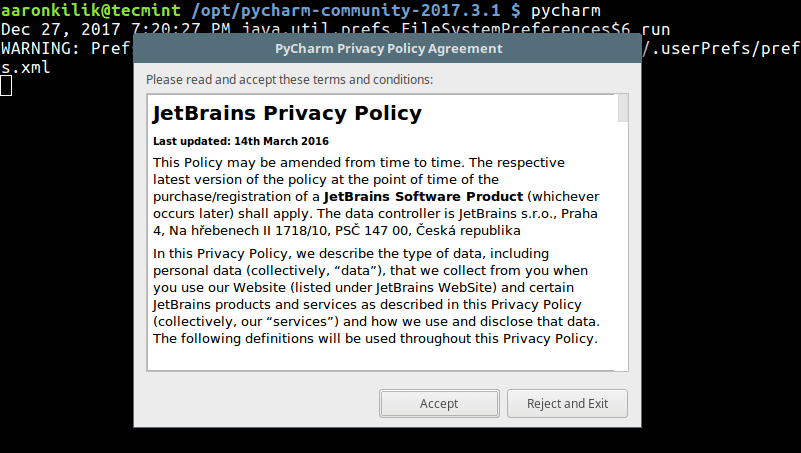
Pycharm Accept Agreement
After that, you will view the pycharm welcome page.
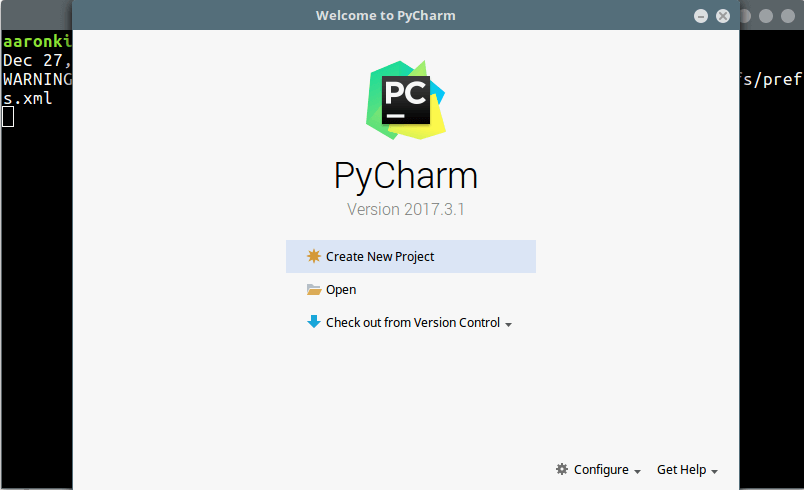
Pycharm Welcome Window
Now create your first project; enter a name for it and click “Create”.
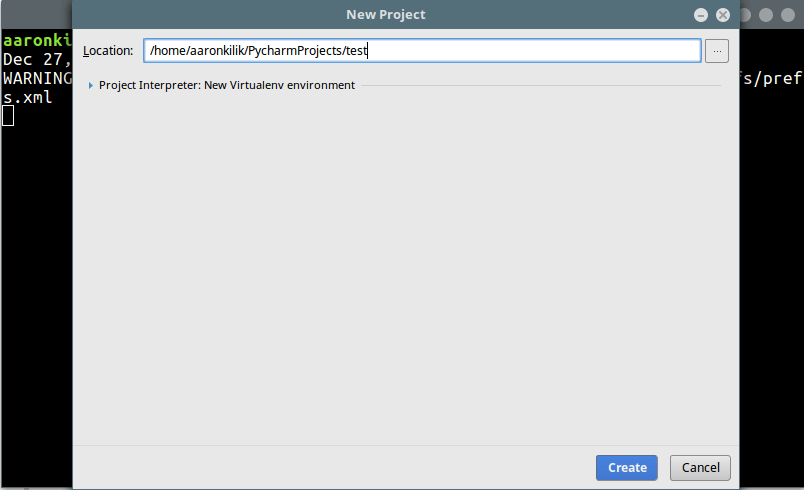
Create Project in Pycharm
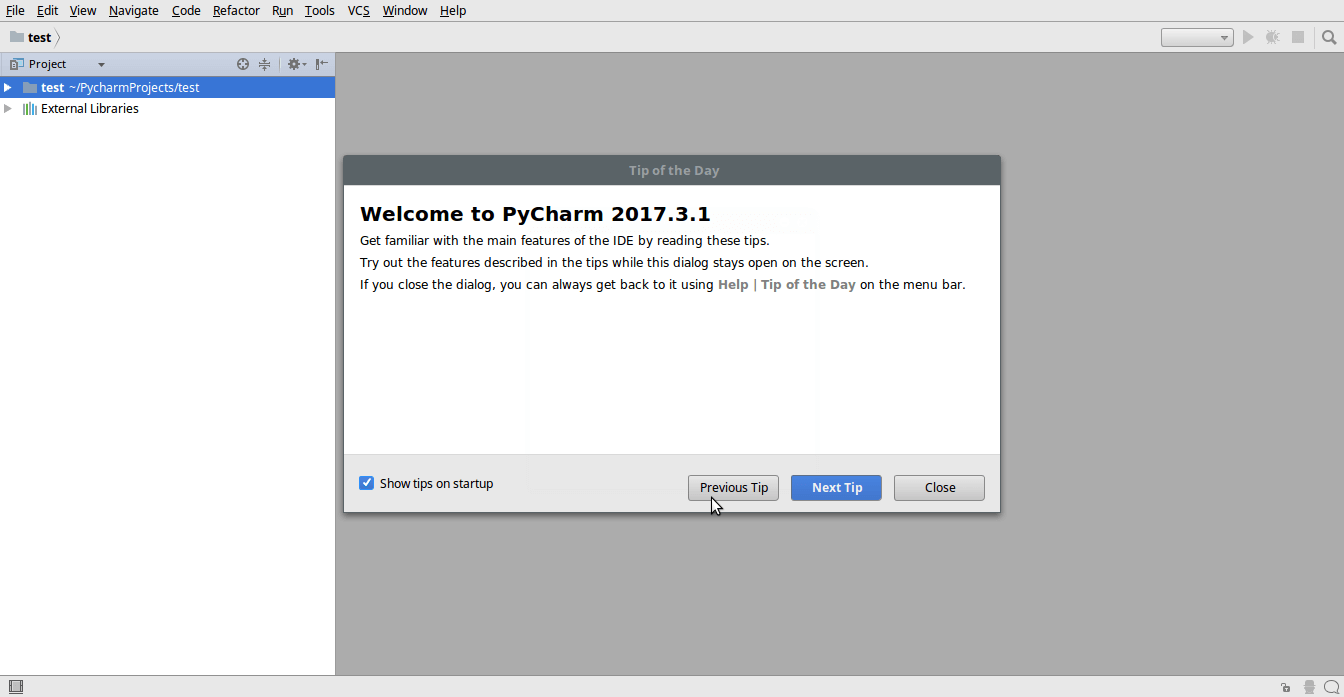
Pycharm Project
Pycharm Documentation: https://www.jetbrains.com/pycharm/documentation/
 TricksZone